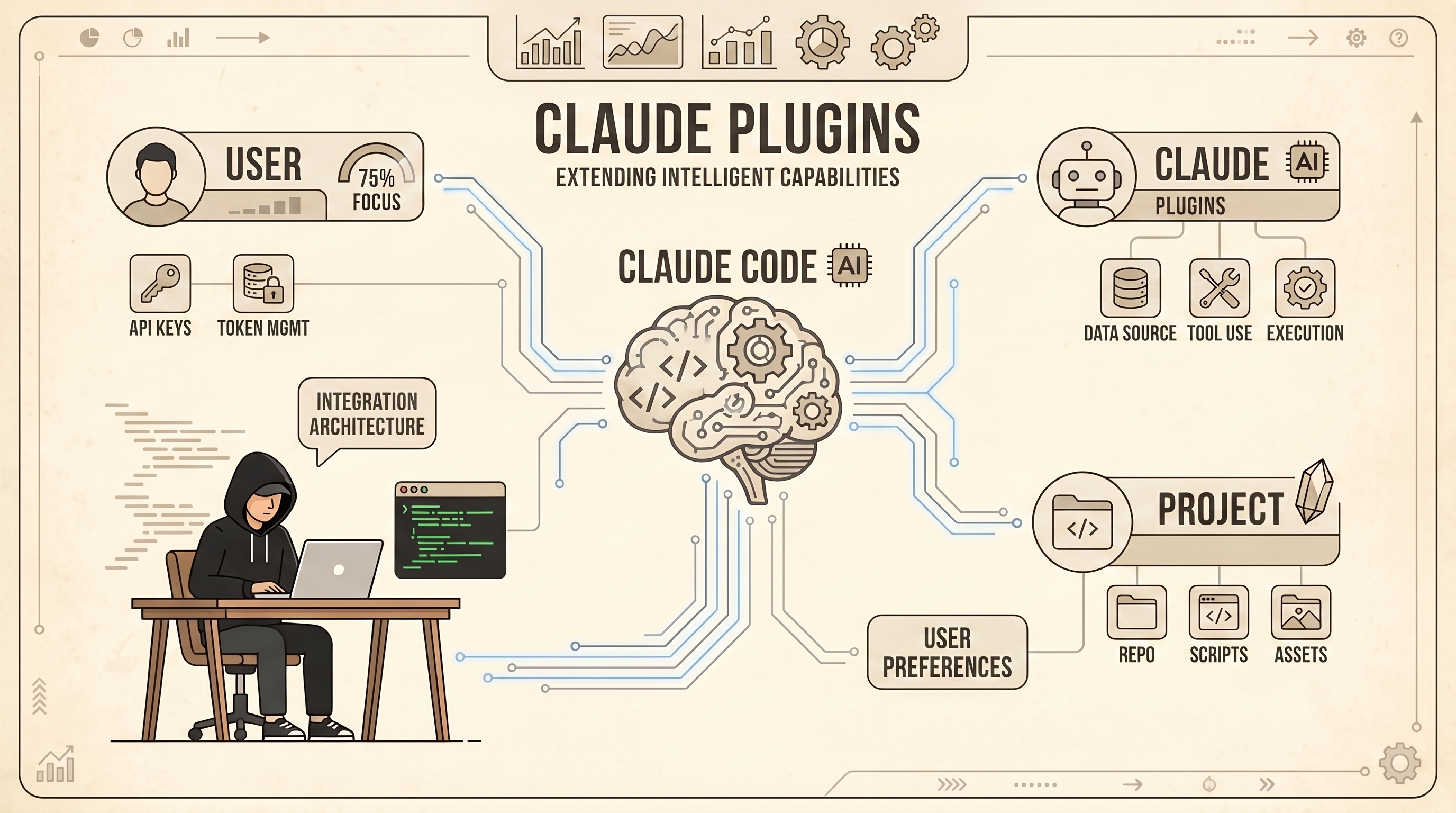
If you've been using Claude Code for a while, you've probably noticed that you keep typing the same kinds of prompts over and over. "Review this PR for me." "Write a commit message." "Check if I missed any error handling." It works, but you're rebuilding the same workflow every time.
That's the problem plugins solve. In this post, I'll walk through what plugins are, show a side-by-side example of working with and without them, and share how I think about choosing and managing them.
What are plugins?
A plugin is a small bundle of pre-built workflows you install into Claude Code. Each one can include a few different things:
- Slash commands — shortcuts you type, like
/code-review, that trigger a specific workflow - Specialized agents — sub-assistants tuned for one job, like spotting type errors or summarizing PR comments
- Skills — encoded best practices that activate when they're relevant
- MCP connections — links that let Claude talk directly to outside tools like GitHub, Linear, or Asana
- Hooks — automatic triggers that run before or after certain actions
You don't have to use all of these. Some plugins are just one slash command. Others bundle a dozen things together.
The official marketplace lives at anthropics/claude-plugins-official on GitHub, and Claude Code can install from it directly.
Claude with vs. without plugins: a quick example
Let's say you've just opened a pull request and want a thorough code review.
Without a plugin, you'd type something like:
"Review this PR. Look for missing error handling, unclear variable names, places where types could be tighter, anything that might silently fail, and tests that don't actually test the behavior. Skip nitpicks."
Claude does a reasonable job. But it's one assistant juggling six concerns at once, so the review tends to be shallower than if each concern got dedicated attention. And next Tuesday, when you want another review, you have to remember exactly what you asked for last time.
With the code-review plugin installed, you just type:
/code-review
Behind the scenes, Claude launches four specialized agents in parallel — each focused on one angle (comments, tests, silent failures, type design). Each finding gets a confidence score, and only issues scoring 80 or higher show up. The result is a tighter, more reliable review, and you didn't have to remember the prompt.
Same model, same underlying ability. The plugin just packages the workflow so you don't rebuild it every time.
How to choose which plugins to install
It's tempting to install a bunch of plugins right away. I'd push back on that. Plugins shape how you work, and a plugin you don't actually use just adds noise to your slash command menu.
Here's the test I use:
1. Have I done this task at least three times? If you've manually written the same kind of prompt three times, that's a workflow worth packaging. If you've never done it, you don't yet know what shape it should take.
2. Do I work with this tool every day?
Connection plugins like github, linear, or gitlab pay off fast if you live in those tools. If you only touch GitLab once a month, the manual gh commands are fine.
3. Is the plugin's opinion my opinion?
Plugins encode choices. The code-review plugin uses an 80-point confidence threshold and a specific four-way split. If that matches how you'd want a review done, great. If you'd rather have one careful pass with a different focus, the plugin will fight you. Read the README before installing.
4. Am I trying to enforce something I keep forgetting? Hooks and skills are great for "I always mean to do X but never remember." Linting before commit, updating project notes after a session, checking environment variables before running a deploy command.
If a plugin doesn't pass at least one of these, skip it for now. You can always install it later.
Installing and managing plugins
Inside Claude Code, there are two ways to install:
Direct install, if you already know what you want:
/plugin install code-review@claude-plugins-official
Browse, if you want to look around:
/plugin
Then pick "Discover" and scroll the list.
Once installed, the plugin's commands show up in your slash menu and its agents and skills are automatically registered.
A few habits that have served me well:
- Review your plugins every month or two. Open the plugin menu and ask yourself, "Did I actually use this?" If you haven't touched a plugin's commands in a month, uninstall it. You can always reinstall.
- Read the README before installing. It tells you which commands the plugin adds, which agents it spins up, and what assumptions it makes. Two minutes of reading saves an hour of "why is Claude doing this weird thing now?"
- Start with one plugin at a time. Install it, use it for a few days, then decide if it's earning its place before adding another. This makes it much easier to tell which plugin is responsible when something feels off.
- Don't be afraid to go plugin-free for exploratory work. Plugins shine for repeatable tasks. For poking around an unfamiliar codebase or sketching something new, raw Claude is usually better — you don't yet know what shape you need.
Wrapping up
Plugins don't make Claude smarter. They make Claude more consistent. They turn workflows you've already figured out into single commands you can lean on without thinking.
Start small. Pick one workflow you've done a handful of times, find a plugin that matches, and try it for a week. If it earns its keep, keep it. If not, uninstall and move on. That's the whole game.